Want to download an ad creative you spotted in the Meta Ad Library? Meta advertising doesn't offer a download button, but you can grab any image or video in a few steps using your browser's developer tools. If you're also looking for the best Facebook ad spy tools to speed up competitor research, bookmark those guides too.
Step 1 — Open the Meta Ad Library and launch DevTools
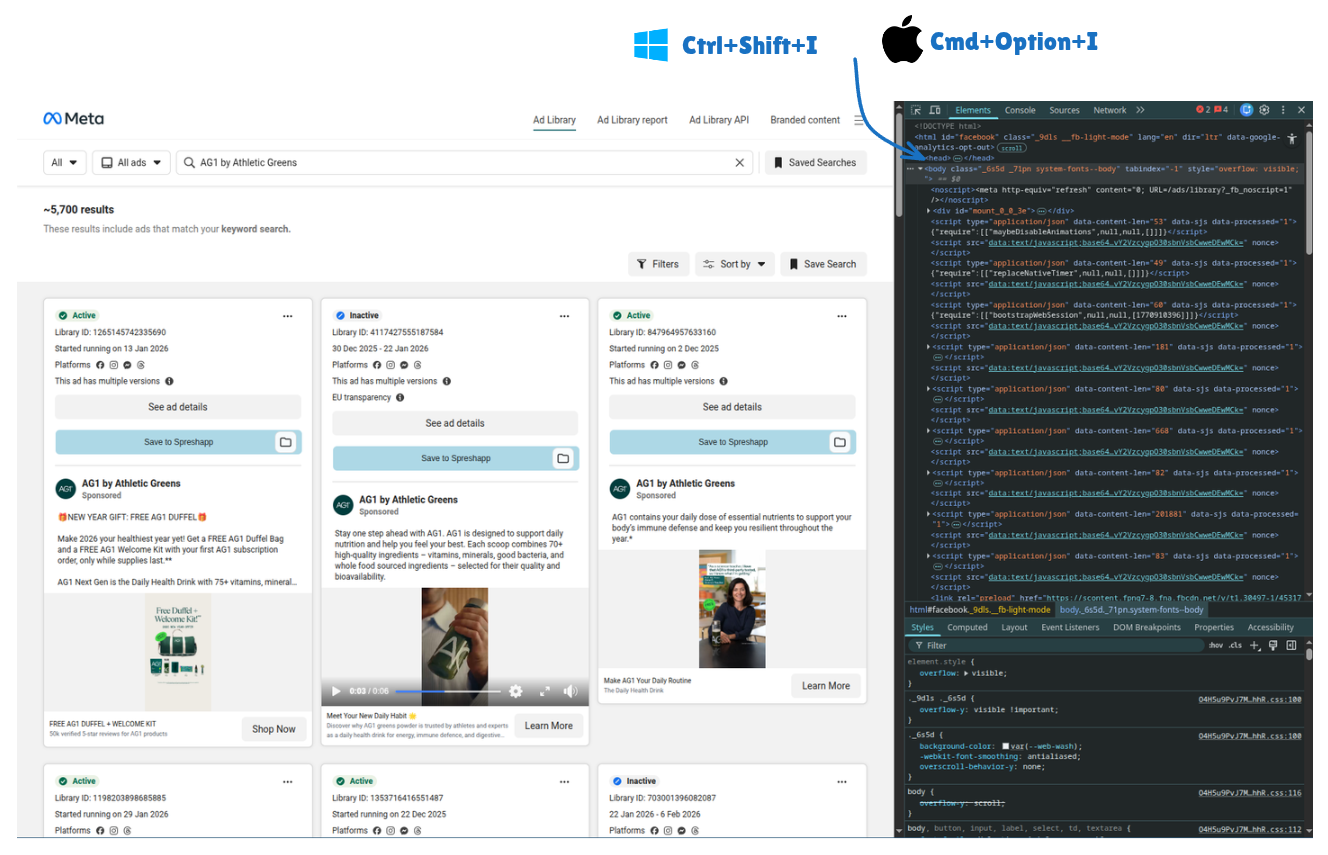
Go to the Meta Ad Library and search for the brand or keyword you're interested in. Once the results load, open your browser's developer tools:
- Windows / Linux: Ctrl + Shift + I
- Mac: Cmd + Option + I
This opens the Elements inspector panel on the right side of the screen.
Step 2 — Inspect the ad creative and copy its URL
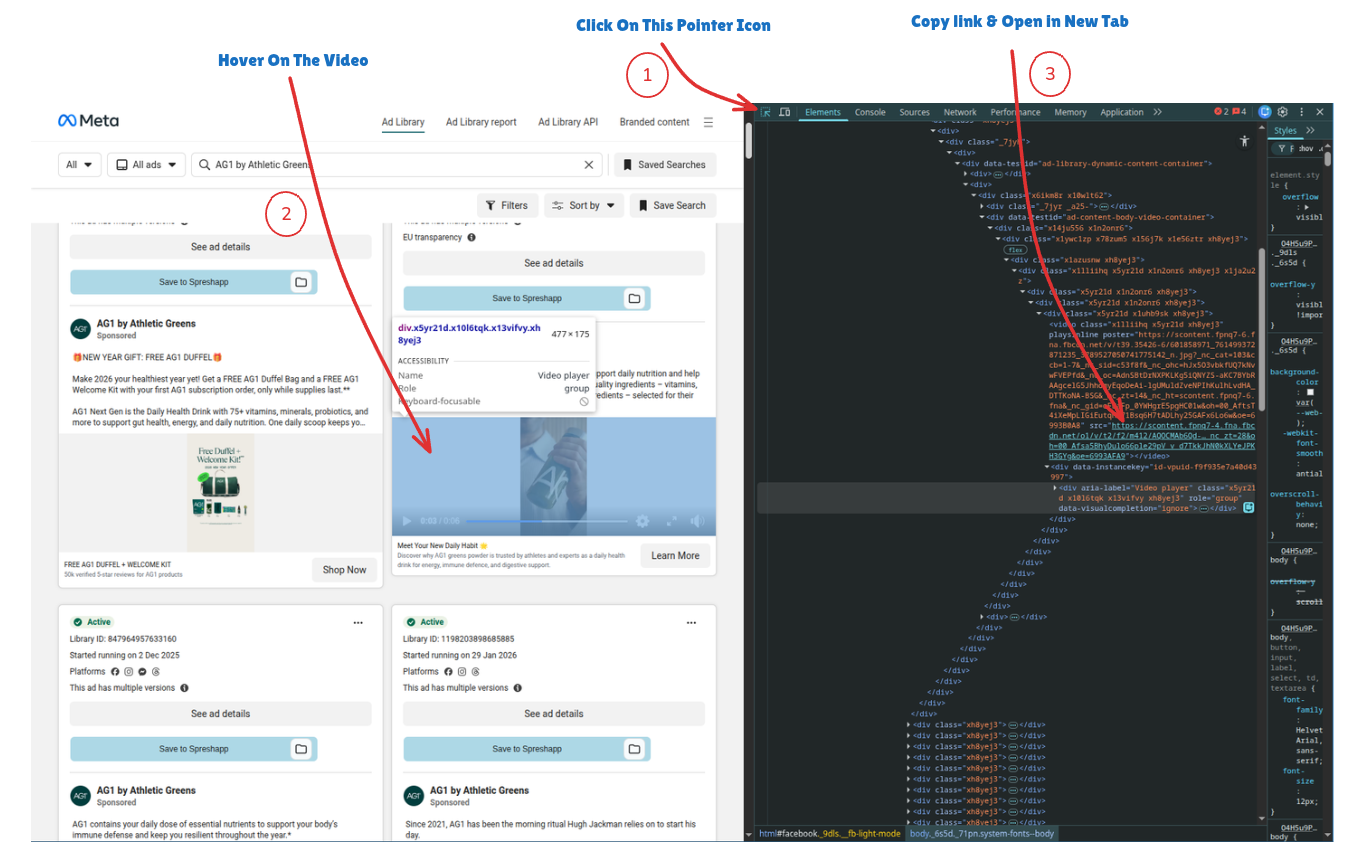
In the DevTools panel, click the pointer/inspect icon (top-left of the panel). Then hover over the ad creative (image or video) you want to download. The inspector will highlight the DOM element and jump to its source in the Elements tab.
Look for the src attribute on the <img> or <video> element. Right-click the URL and choose "Open in new tab" to load the raw media
file.
Step 3 — Download the file
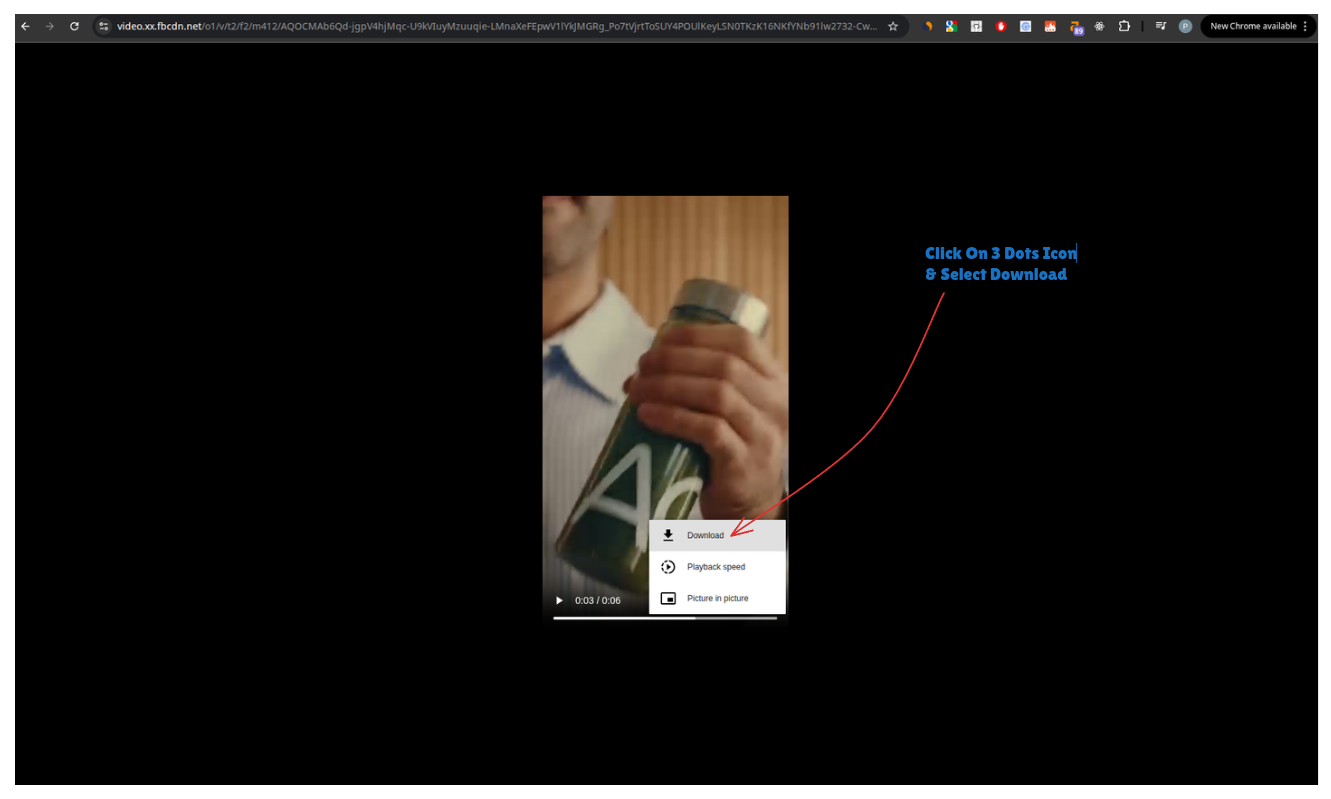
Once the image or video is open in its own tab, right-click it (or click the three-dots menu on a video player) and select Download. The file will save to your default downloads folder.
Step 4 — Make this workflow repeatable (the easy way)
The manual inspect-and-download flow works, but it's slow and tedious, especially if you're saving dozens of ads for competitor research or creative briefs. Every ad requires opening DevTools, hunting through the DOM, and hoping the URL doesn't expire. Compared to purpose-built options covered in our Google Drive vs ad library tools guide, this manual approach doesn't scale. If you want to find winning ads consistently, you need a repeatable system, not a one-off hack.
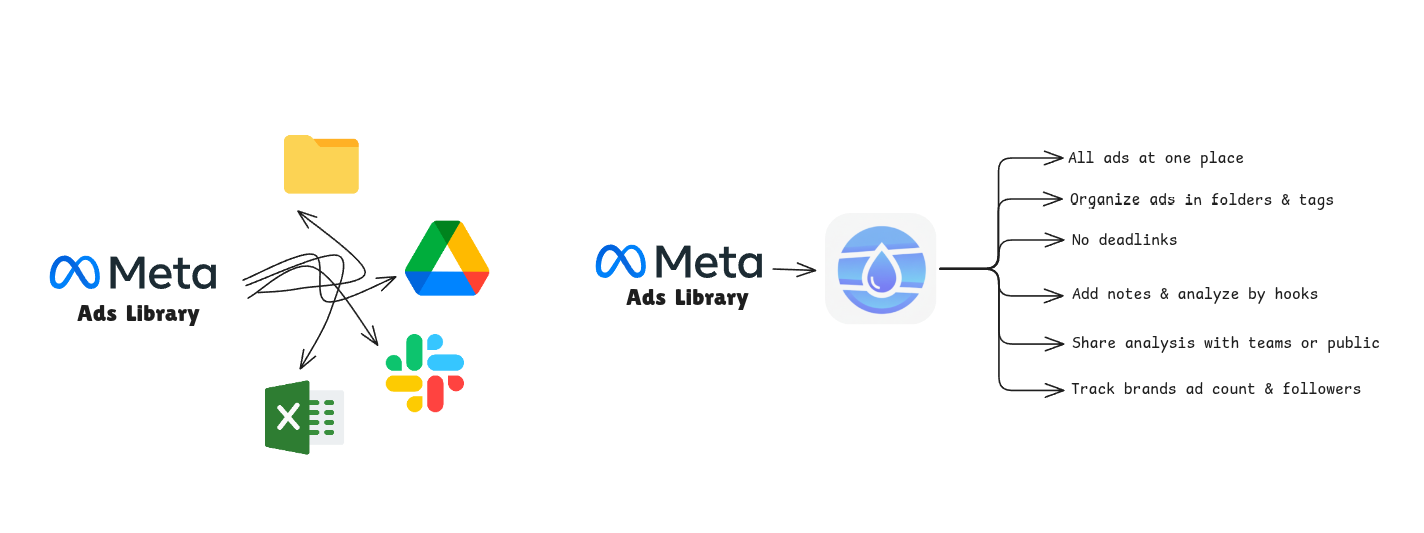
Spreshapp eliminates all of that. With the Facebook Ads Chrome extension (install it here) you can:
- Save any ad in one click directly from the Meta Ad Library, no DevTools needed. This is what makes Spreshapp the most popular download Facebook ads extension around.
- Automatically capture the creative, copy, and metadata (advertiser, platform, dates).
- Organize saved ads with tags, folders, and notes using a proper Facebook ad swipe file system.
- Get AI-powered ad creative analysis, hooks, messaging angles, and audience personas instantly.
- Share and collaborate with your team or clients on any saved ad.
Instead of spending 5 minutes per ad fumbling with DevTools, Spreshapp turns the entire workflow into a single click. Set it up once and start building a swipe file your whole team can use for research-backed creative decisions.